Microsoft Account Alert Phishing is a widespread cybercrime tactic where scammers send fraudulent emails designed to look like official security notifications from Microsoft. These emails impersonate critical alerts about “unusual sign-in activity,” “account suspension,” or “billing problems” to create a sense of urgency and panic. The ultimate goal is to trick you into clicking a malicious link, leading to a fake Microsoft login page where your credentials are harvested, potentially leading to account takeover, identity theft, and financial loss. This educational article, grounded in current cybersecurity best practices, will empower you to distinguish these sophisticated fakes from legitimate Microsoft communications, verify alerts safely, and report phishing attempts effectively. This guide is for awareness and educational purposes only and is not a substitute for official technical support from Microsoft.
What Is a Microsoft Account Alert Phishing Email?
At its core, a Microsoft Account Alert Phishing email is a form of brand impersonation scam. Cybercriminals craft messages that mimic the look, tone, and content of genuine Microsoft security alerts. They exploit the trust users have in a major brand and the natural concern we feel about our account security.
The scam operates on a simple but effective psychological principle: fear and urgency. When you receive an email stating, “Your account has been locked due to suspicious activity,” your immediate instinct is to resolve the issue. The attackers bank on this panic overriding your logical judgment, pushing you to click without scrutinizing the message. Read More About MEXQuick News
The key difference between a legitimate Microsoft notification and a phishing attempt lies in its intent and action. A real alert informs you of an event and guides you to the official, secure Microsoft account portal to review and manage your security. A phishing email, conversely, always contains a link or button that directs you to a scammer-controlled website designed to look like the Microsoft login page. Any credentials you enter on this fake page are sent directly to the attackers.
Common Examples of Fake Microsoft Alert Emails
Phishers use a variety of pretexts to lure victims. Recognizing these common themes is your first line of defense.
- “Unusual Sign-In Activity Detected”: This is one of the most prevalent scams. The email claims a sign-in was attempted from a new device or location, often including a map and IP details (which are fabricated) to add credibility.
- “Your Account Has Been Locked” or “Suspended”: This message creates immediate pressure, stating you must take action now to restore access to your email, OneDrive, or Microsoft 365 services.
- “Verify Your Microsoft Account to Restore Access”: A variation on the “locked account” theme, this prompts you to “verify” your identity, which inevitably means entering your password on a fake site.
- “Password Reset Request Received”: This preys on the fear that someone is trying to take over your account. The email asks if you requested the reset; if not, you’re urged to click a link to “secure your account,” which ironically does the opposite.
- “Payment Declined or Billing Issue”: Targeting Microsoft 365 or Xbox subscribers, this scam claims there’s a problem with your payment method. It threatens service interruption unless you immediately update your billing information, leading to a phishing page that steals your credit card details and Microsoft login.
- “Suspicious Sign-In from a New Device”: Similar to the unusual activity alert, this one specifically mentions a “new device” to heighten concern.
Common Design Elements:
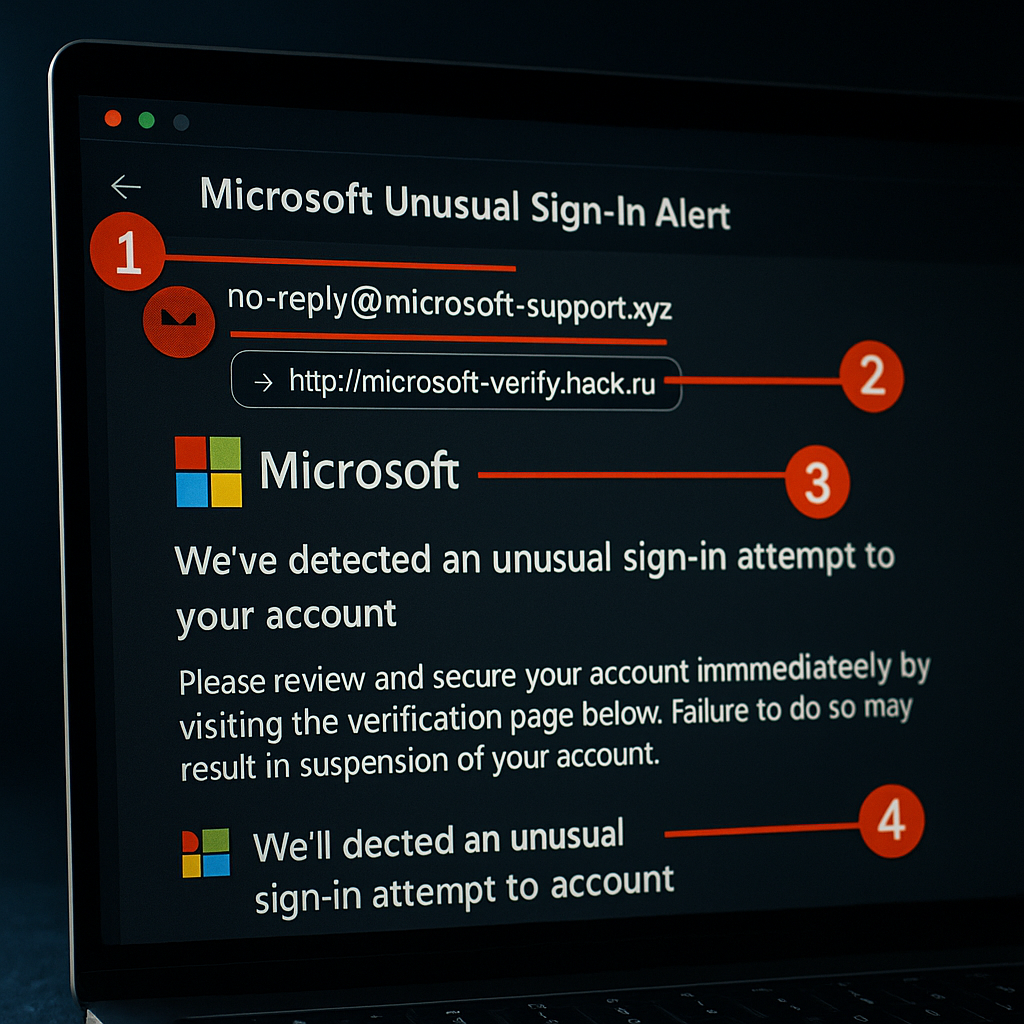
Scammers often use official Microsoft logos, colors, and footer text to appear legitimate. However, these designs often have subtle flaws: pixelated images, slightly off-color schemes, or grammatical errors. The overall tone is almost always one of extreme urgency, pressuring you to act quickly or face dire consequences.
Real vs. Fake How to Verify Microsoft Security Emails
Verification is a calm, methodical process. Never take action directly from an unsolicited email. Follow these steps to confirm an alert’s legitimacy.
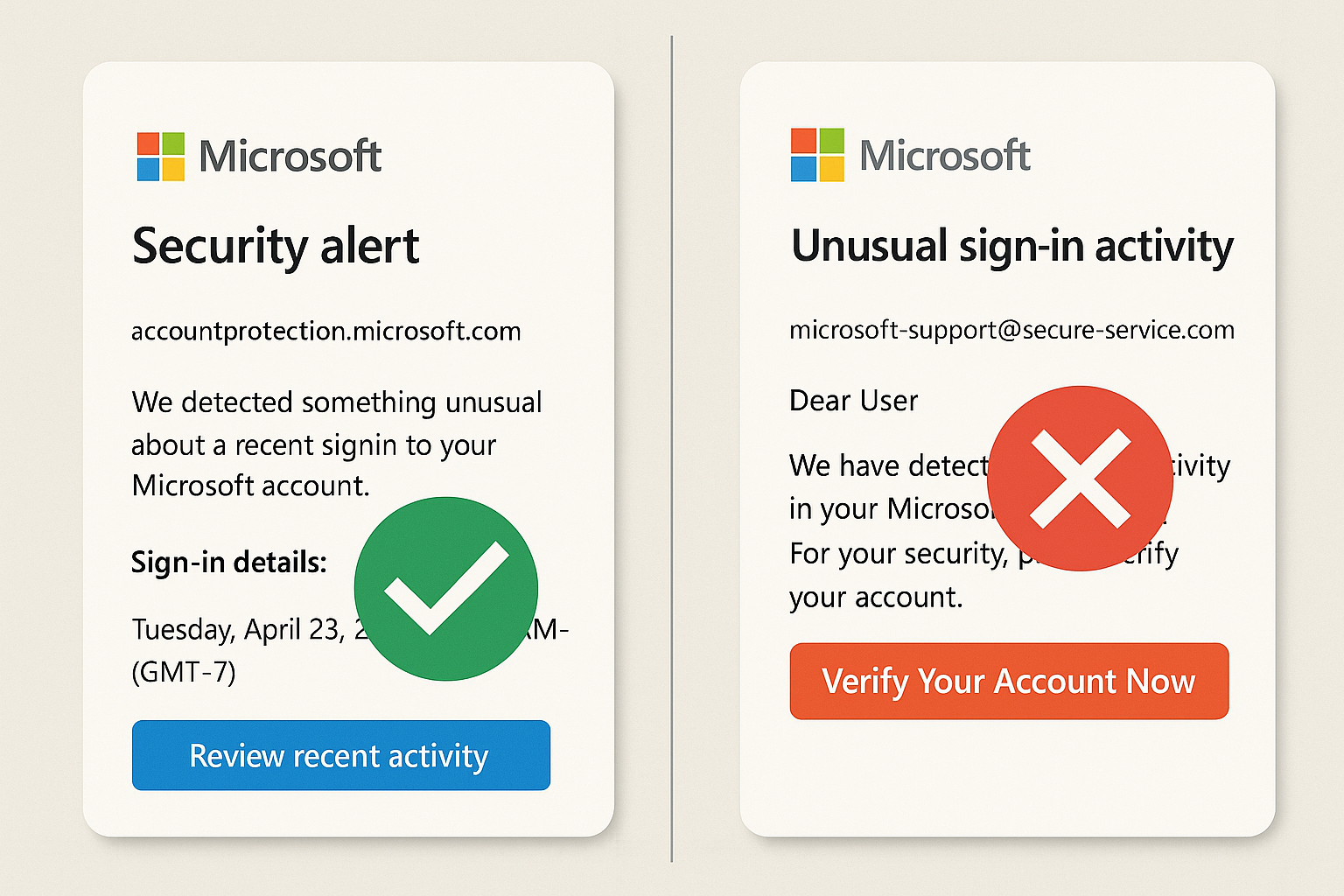
- Scrutinize the Sender’s Email Address: This is the most critical step. Legitimate Microsoft security emails always come from a specific, verifiable domain.
- Real Domains: Look for addresses ending in @accountprotection.microsoft.com, @microsoft.com, or @email.microsoft.com. Be wary of any slight misspellings or substitutions (e.g., @account-protection.microsoft.com is fake, @micros0ft.com uses a zero instead of an ‘o’).
- Fake Domains: Phishers use domains that look similar at a glance, such as @microsoft.secure.com (where ‘secure.com‘ is the actual domain) or @microsoft-account.com.
- Hover Over Links (Don’t Click!): On a desktop computer, move your mouse cursor over any link or button in the email. Your browser or email client will display the true destination URL at the bottom of the window.
- Legitimate Links: Will point to genuine Microsoft domains like https://login.microsoftonline.com/, https://account.live.com/, or https://outlook.live.com/.
- Fake Links: Will show a completely different address, often using URL shorteners (like bit.ly) or leading to domains that have no relation to Microsoft (e.g., http://microsoft-verification.secure-login[.]xyz).
- Check for Personalization: Genuine Microsoft alerts typically address you by the display name associated with your account. Generic greetings like “Dear User” or “Hello Customer” are major red flags for mass-phishing campaigns.
- Assess the Urgency and Tone: Is the email creating an artificial sense of panic? Phrases like “Immediate action required,” “Your account will be closed,” or “Act within 24 hours” are classic manipulation tactics. Real security alerts are informative and direct, not hysterical.
- Go Directly to the Source: If you are unsure, never use the links in the email. Instead, open your web browser manually and go directly to the Microsoft account security page: account.microsoft.com/security. Sign in here to check for any legitimate security notifications, recent activity, or account issues.
Microsoft Account Alert Phishing Subject Lines to Watch
Attackers use subject lines engineered to trigger an immediate open. Here are real-world patterns to be cautious of:
- Unusual sign-in activity detected
- Action Required: Secure Your Microsoft Account
- Microsoft Account: Sign-in blocked
- We’ve restricted your Microsoft account
- Urgent: Verify your identity
- Password change request
- Microsoft account suspension notice
- [Action Required] Unfamiliar sign-in prevented
If you see a subject line like this, it’s a cue to apply the verification steps above with extra care before interacting with the email.
Credential Theft and Brand Impersonation Explained
Once you click the link in a phishing email, you are taken to the credential harvesting phase. The link leads to a fake login page that is a near-perfect replica of the official Microsoft sign-in page. This is achieved through spoofed domains and Unicode homograph attacks, where characters from different languages look identical to Latin letters (e.g., mісrоsоft.com with Cyrillic ‘і’ and ‘о’).
You are prompted to enter your email address, password, and if enabled, your Multi-Factor Authentication (MFA) code. The moment you submit this information, it is sent to the attacker’s server. They can then use automated tools to immediately use your credentials and the stolen MFA code to gain access to your account. This is known as MFA fatigue or real-time phishing, a tactic designed to bypass one of the most critical security layers.
What To Do If You Clicked a Fake Microsoft Alert
If you suspect you’ve fallen for a phishing scam, act quickly and methodically. Do not panic.
- Change Your Microsoft Password Immediately: Go directly to account.microsoft.com/security and change your password. Do this from a trusted device that you know is not compromised. Ensure the new password is strong and unique.
- Enable MFA or Passkeys: If you haven’t already, set up MFA or a passkey immediately. This will lock out the attacker even if they have your new password.
- Check and Revoke Sessions: On the same security page, review “My sign-ins & activity” and sign out of all devices you don’t recognize. Then, use the “Sign out of all devices” option as an extra precaution.
- Scan Your Device: Run a full scan with your antivirus software, such as Microsoft Defender Antivirus, to check for any malware that may have been installed.
- Check Related Accounts: If you use the same password for other services (a practice you should avoid), change those passwords immediately.
- Report the Phish: Forward the malicious email to reportphish@outlook.com. This helps Microsoft improve their filters and protect other users.
Security Features That Help Prevent Phishing
Both individual users and organizations can leverage powerful tools to defend against these attacks.
For Individuals:
- Multi-Factor Authentication (MFA): This is non-negotiable. Even if a phisher steals your password, they cannot log in without the second factor (like an authenticator app or a hardware key). Avoid SMS-based codes if possible, as they can be intercepted via SIM-swapping.
- Passkeys: Microsoft supports passkeys, which are a more secure, phishing-resistant alternative to passwords. They use biometrics (like your fingerprint or face) or a device PIN to sign in, making credential theft much harder.
- The Microsoft Authenticator App: This app can provide number-matching challenges, which prevent accidental approval of MFA prompts (MFA fatigue) and offer additional security by showing the sign-in location on the screen.
- Review Recent Activity: Regularly check your sign-in history at account.live.com/activity. This allows you to see where and when your account has been accessed and to sign out of suspicious sessions.
For Organizations (Microsoft 365):
- Microsoft Defender for Office 365: This suite includes Safe Links, which scans URLs in emails in real-time to block malicious sites, and Safe Attachments, which scans email attachments for malware before delivery.
- Conditional Access Policies: IT administrators can set rules that block sign-ins from unfamiliar locations, impossible travel scenarios (e.g., logging in from New York and London within an hour), or non-compliant devices.
- DMARC/SPF/DKIM Authentication: These are email security protocols that help prevent email spoofing. Configuring them correctly makes it much harder for phishers to send emails that appear to come from your organization’s domain.
Reporting Fake Microsoft Emails
Reporting phishing attempts is a civic duty that helps protect the broader community.
- Forward to Microsoft: Send the suspicious email as an attachment to reportphish@outlook.com. In Outlook, you can do this by selecting the email, going to “Home” > “More” > “Forward as attachment.”
- Use the “Report Message” Add-in: If your organization uses Microsoft 365, your IT admin may have enabled the “Report Message” add-in. Use it to report the email as “Phishing.”
- Mark as Phishing in Your Client: In webmail clients like Outlook.com, you can select the message and choose “Report phishing” from the Junk dropdown. This is more effective than just marking it as “Junk.”
- Notify Authorities: If you have suffered financial loss or identity theft as a result of the phishing attack, report it to your local consumer protection agency (like the FTC in the USA or Action Fraud in the UK) and your national CERT (Computer Emergency Response Team).
How Organizations Can Defend Against Account Alert Phishing
Businesses are high-value targets. A comprehensive defense strategy is essential.
- Security Awareness Training: Conduct regular, simulated phishing campaigns to train employees to recognize and report fake alerts. Make this training ongoing and based on current threats.
- Deploy Advanced Security Tools: Utilize Microsoft Defender for Office 365 (Plan 2 or higher) to leverage its advanced anti-phishing, anti-spoofing, and URL protection capabilities.
- Implement Conditional Access: Enforce policies that require MFA, block legacy authentication protocols, and restrict access based on device compliance and network location.
- Enable Mail Flow Rules: Configure rules to flag or quarantine emails that claim to be from Microsoft but originate from external domains not used by Microsoft’s official infrastructure.
- Apply a Zero Trust Model: Adopt a “never trust, always verify” approach. Assume breach and verify every access request, regardless of its source.
Emerging Trends 2025 Phishing Tactics
As defenses improve, so do attack methods. Be aware of these evolving threats:
- AI-Generated Content: Phishers are using generative AI to create flawlessly written emails and deepfake branding, eliminating the grammatical errors that once made scams easy to spot.
- OAuth Token Theft and Session Hijacking: Instead of just stealing passwords, attackers are using sophisticated phishing kits to steal active session cookies, allowing them to bypass MFA entirely.
- Multi-Channel Hybrid Attacks (Phishing 2.0): An attack may start with a phishing email, followed by a vishing (voice phishing) call from someone pretending to be “Microsoft Support,” and a simultaneous SMS phishing (smishing) message, creating a overwhelming illusion of legitimacy.
- Microsoft’s Ongoing Mitigations: Microsoft is continuously enhancing its security ecosystem with features like “Tenant Allow/Block Lists” for URLs and a “Phish Simulation Trainer” in Defender. Staying informed about these updates is key for organizational defense.
Conclusion Microsoft Account Alert Phishing
In the digital age, vigilance is your most valuable asset. Microsoft Account Alert Phishing is a persistent threat, but it is not undefeatable. By understanding the scam’s mechanics, adopting a calm and verification-first mindset, and leveraging modern security tools like MFA and passkeys, you can significantly reduce your risk.
Remember, a genuine Microsoft security alert will always guide you to the official account portal for action. You never need to click a link in an unsolicited email to “verify” or “unlock” your account. When in doubt, navigate to account.microsoft.com directly through your browser. Real security comes from awareness and proactive habits not from fear. By staying informed and cautious, you can confidently manage your digital identity and keep your accounts secure.